
How to Convert CAD to HTML with SpinFire Insight
How to Convert CAD to HTML with SpinFire Insight
Most of the people who need to see an engineering model will never open a CAD application. Purchasing, quality, manufacturing, suppliers, and customers all benefit from reliable access to engineering data to review geometry, check dimensions, and more. What other departments don’t need is expensive CAD applications with highly specialized features most of them will never use.
Converting CAD data to HTML is one way to expand access to this data at a fraction of the cost. SpinFire Insight allows you to export a CAD model to an HTML file that opens in any modern web browser. Anyone with access to the link or file easily review the design without a viewer, plugin, or CAD license.
Here, we outline the benefits of exporting to HTML, detail exactly what information is preserved, and explain how you can do it with SpinFire Insight.
What Recipients Get When Exporting CAD to HTML
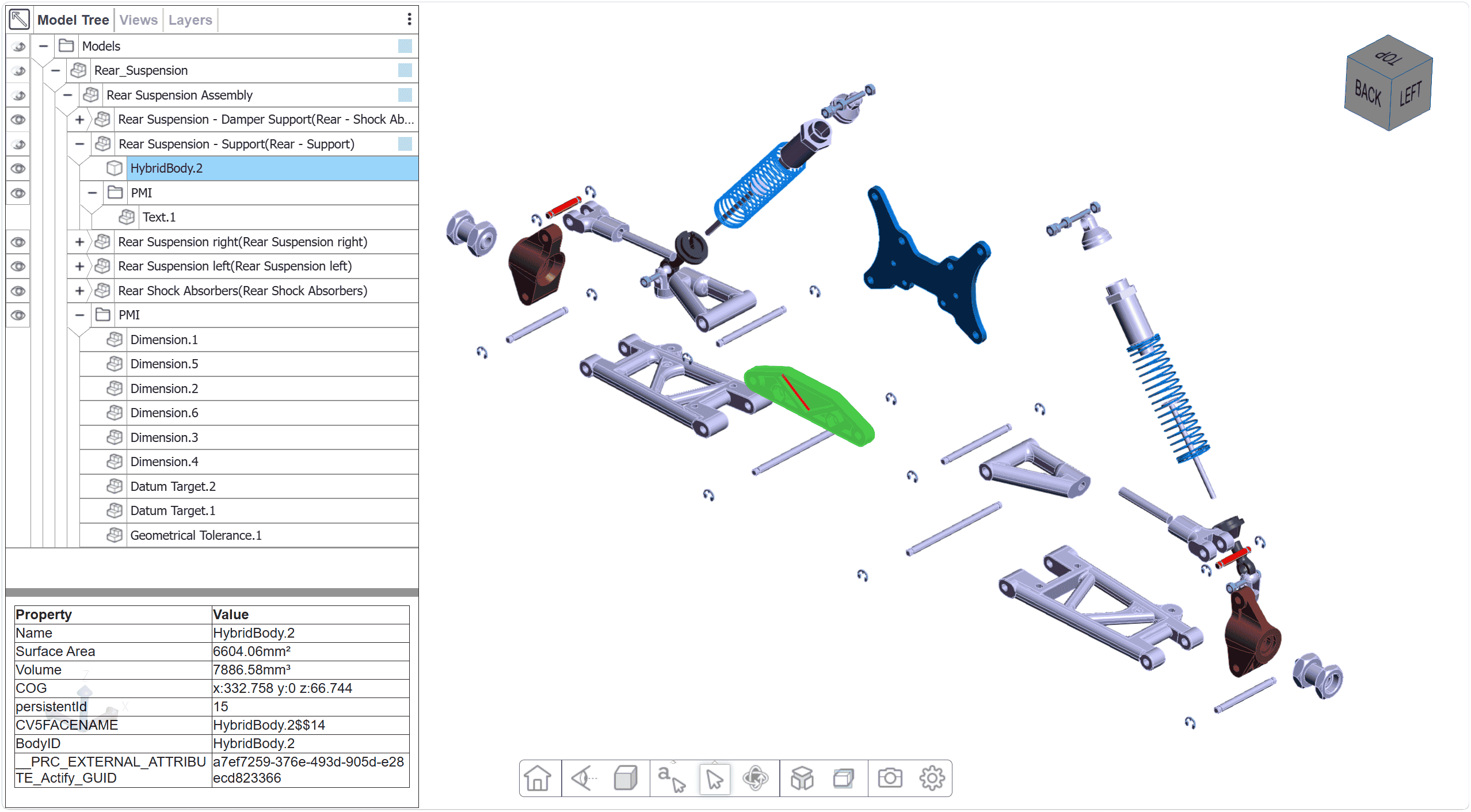
SpinFire Insight's HTML export produces an interactive 3D model, not a static image. In their browser, recipients can rotate the model, explode assemblies, and view cross sections.
The export allows reviewers to see the geometry and design information, without needing to send them the native CAD file. This level of control allows you to share a model with a supplier or customer without exposing the parametric design features shown in the native file – allowing you to protect your sensitive IP.
Easy Access Without Installing Anything
The HTML file you create can be accessed in a browser on just about every mobile device and desktop, allowing recipients to click a link or open a file and interact with the model, no downloads required.
This is especially useful for sharing with organizations with strict IT security policies. In these cases, approving a new viewing application can take weeks, or the software may be blocked outright. HTML export avoids this software approval process entirely, which is especially valuable for external users on networks you don't control.
One Format Across Every CAD System
Many organizations utilize different CAD systems throughout the company, with different departments standardizing different tools, suppliers and customers each using their own software, and acquisitions bringing new systems into the workflow. Native files are only useful to people running the same system.
SpinFire Insight imports all major CAD formats, including CATIA, Designcenter (NX), Creo, and SolidWorks, and exports each of them to the same HTML output. Downstream users get one format they can always open, regardless of which system produced the model.
Preserving PMI
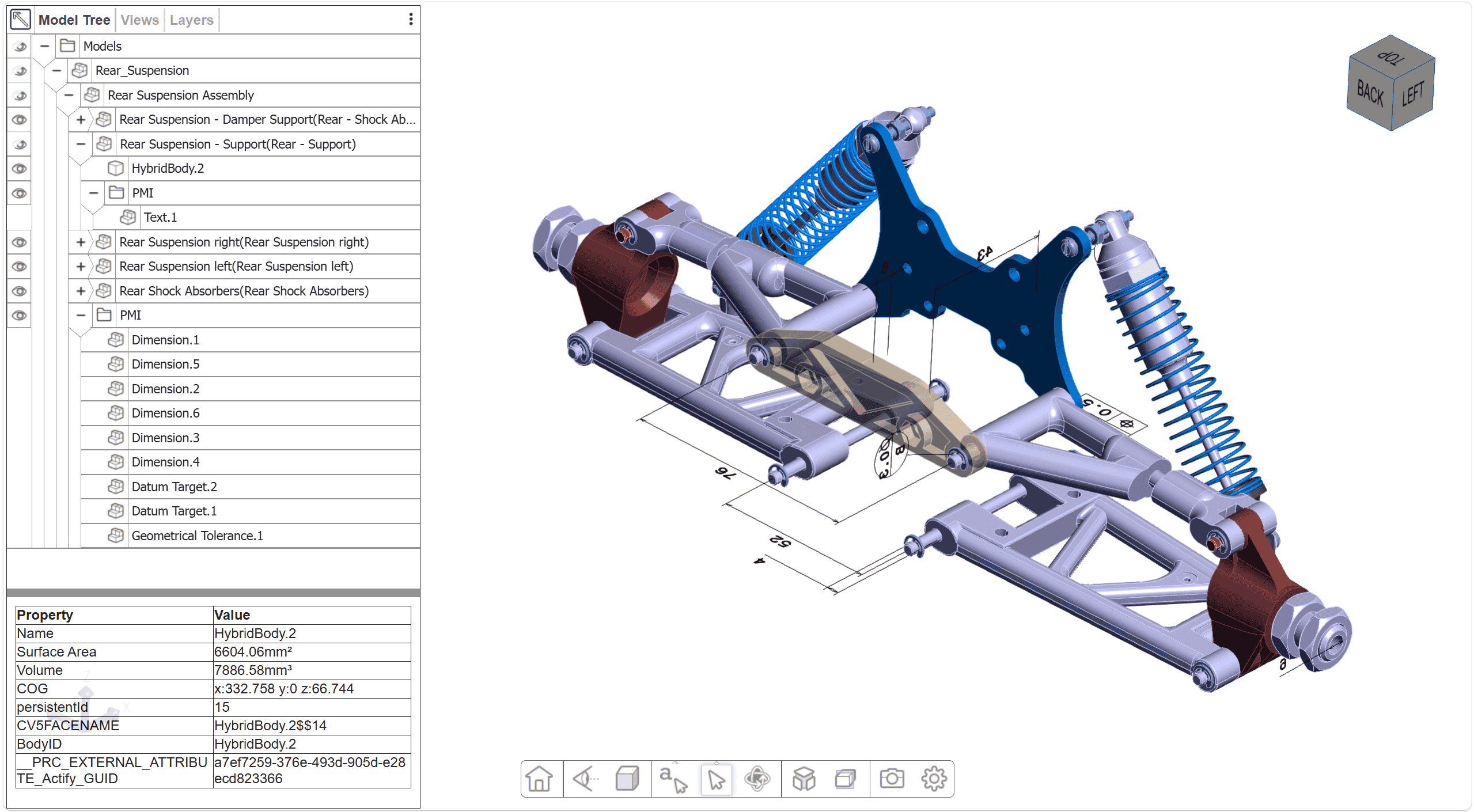
While the 3D model is an integral part of what makes this tool useful for collaboration, some users need more. SpinFire Insight carries Product Manufacturing Information (PMI) through to the HTML export. Tolerances, dimensions, and notes stay attached to the model. With this, reviewers can read design intent directly in the browser instead of cross-referencing a separate drawing.
As 3D models are used more in design workflows and teams shift to model-based definition (where the 3D model replaces the 2D drawing as the authoritative definition of the product) data preservation matters. Since the HTML output keeps the PMI, the model in the browser preserves the design intent.
Embed CAD Models in Web Pages and Portals
Because the output is HTML, it can be opened in a web browser. You no longer need to send attachments that get buried in email threads or duplicated across shared folders. Instead, you can publish the model to a supplier portal, intranet page, or documentation site, and everyone links to the same current version. This also gives a degree of protection if you are sharing designs that need security protections, by embedding the design on a supplier portal behind a login ensures that only the intended people have access to the data.
HTML or 3D PDF?
HTML is designed for fast review and broad access. When a model needs to go into a formal deliverable, such as a technical data package, 3D PDF is the better fit. It supports structured templates and the document controls those deliverables require. Many teams use both: HTML for day-to-day review and 3D PDF for anything that needs to be formally released.
How to Export CAD to HTML in SpinFire Insight
HTML export is available in the Premium plan of SpinFire Insight and above, in version 2025.1 or later.
Open the CAD model in SpinFire Insight.
From the File menu, select Export, then choose HTML.
Set any export options.
Save the file, then share it directly or host it on a web page.
To convert several models at once, right-click the files in a configured Library folder and select Convert or Convert All.
Get Your CAD Models in Front of Everyone Who Needs Them
HTML export lets anyone who needs a model open it in the browser they already have, with the geometry and PMI intact.
FAQ
Do recipients need SpinFire Insight installed to open an HTML export?
No, SpinFire Insight is only required to generate the HTML output, not to open it. The HTML file can be opened in any modern web browser on desktop or mobile. Recipients don’t need SpinFire Insight, a separate viewer, a plugin, or a CAD license. They can click a link or open the file, and the model is there. This makes the HTML format accessible for suppliers, customers, and anyone working on a network you don’t control.
Which CAD formats can SpinFire Insight export to HTML?
SpinFire Insight exports to HTML from all major CAD formats, including CATIA, Designcenter (NX), Creo, and SolidWorks. That means teams can standardize on one shared format for review, regardless of which application each team individually uses.
Does the HTML export keep PMI and dimensions?
Yes. Product Manufacturing Information carries through to the HTML export, so tolerances, dimensions, and notes stay attached to the model. Reviewers are able to read design intent directly in the browser rather than cross-referencing a separate drawing, enabling model-based definition approaches.
Should I Export my CAD to HTML or 3D PDF?
It depends on the purpose. HTML is built for fast review and broad access, which suits day-to-day collaboration. 3D PDF can be a better fit when a model needs to be presented in a structured template with document controls. Many teams use both, choosing HTML for review and 3D PDF for anything that needs to be formally published and documented.